From receipt photo to logged expense in 20 seconds: an OpenClaw use case
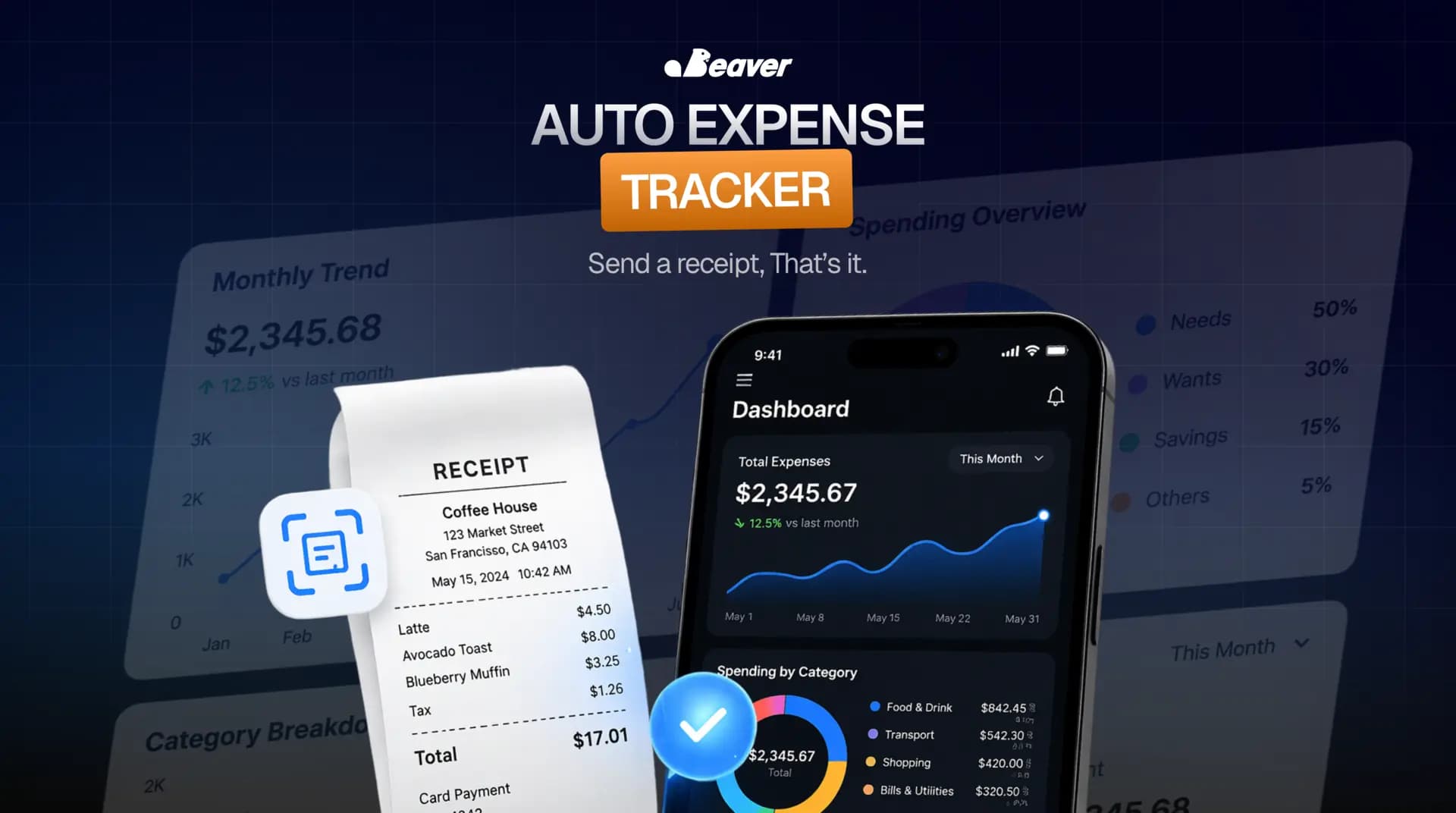
Send a receipt. It extracts every field, files the image to Drive, and logs the row in your spreadsheet. The Expense Tracker workflow, with the schema-locked extraction that keeps the ledger trustworthy.
 Benjamin MajorApril 27, 20266 min read
Expense tracking is the smallest task that quietly costs the most time.
The actual work (pull out a card, pay, take a photo) takes thirty seconds. The shadow work is everything after: typing the vendor, the date, the amount, the category, the project. Uploading the photo somewhere it will not be lost. Matching it later against the credit card statement. That tax compounds across freelancers, contractors, sales teams, and anyone who travels for work.
The Expense Tracker is the OpenClaw workflow that collapses the shadow work to zero. Take the photo. Forward it. Done.
This post is the walkthrough: what gets extracted, why the categorization is driven by the card and not the vendor, and what happens to receipts the workflow cannot read.
What is automated expense tracking?
Automated expense tracking is a workflow that turns a receipt photo into a structured row in a ledger without manual data entry. The agent extracts vendor, date, amount, line items, and payment method. It files the image to a deterministic location. It logs a new row in the target spreadsheet with a hyperlink back to the image. The whole loop runs in seconds.
The category exists because manual receipt entry has been a half-solved problem for fifteen years. OCR works. Most workflows still fail because the OCR is the easy part. The hard parts are categorization, deduplication, and what to do with bad inputs.
Why receipt OCR alone is not the answer
The OCR-only version of this workflow has been available for a decade. It does not work well enough for daily use because three problems are unsolved.
Vendor names are not categories. "STARBUCKS #4421" is a vendor. Whether the row belongs in personal / coffee or business / travel depends on the card you used, not the vendor. OCR alone cannot tell you that.
Receipts are unreliable inputs. Half the time the photo is partially cut off, blurry, or shot at an angle that crops the total. A workflow that fails silently on bad inputs is worse than no workflow.
Duplicate detection is hard at scale. The same business lunch produces a card receipt and an Uber receipt within an hour. A naive logger creates two rows for one event and the ledger drifts within weeks.
OpenClaw's Expense Tracker handles all three as explicit design choices.
How the workflow runs
The trigger is the photo: emailed, texted, or dropped into a chat thread the agent watches.
-
Capture the image and metadata. The sender, timestamp, and any caption text are stored alongside the file. Captions like "client lunch, billable to Acme" become categorization signal.
-
Schema-locked extraction. A vision pass pulls a fixed schema from the receipt: vendor name, vendor address, transaction date, transaction time, last-four of the card, total, subtotal, tax, tip, payment method, and a list of line items with prices. The model is not allowed to summarize. If a field is missing, it stays blank with a flag.
-
Match the card. The last-four is matched against a known card list (personal, business, client-specific). The category gets pre-filled based on which card was used. This is the single highest-signal categorization step.
-
Normalize. Vendor names get cleaned.
STARBUCKS #4421becomesStarbucks. Dates get a single canonical format. Amounts convert to a consistent currency. -
File the image deterministically. The original photo lands in Drive under
Expenses / [Year] / [Month] / [Vendor] - [Date] - [Amount].jpg. The deterministic filename means you can find it without opening Drive. -
Log the row. A new row appears in the expense spreadsheet with every extracted field, plus a hyperlink to the Drive image. The row goes in the right tab: personal, business, or per-client.
-
Confirm in-thread. A one-line message comes back with vendor, amount, and the spreadsheet link in case anything looks off.
End to end, under twenty seconds from snap-photo to logged-row.
What we figured out the hard way
Three lessons from running this against three years of real receipts.
Card-driven categorization is non-negotiable. Our first version asked the agent to infer category from the receipt content. The accuracy was around 78%. We changed the rule: read the last-four first, then the receipt content as a tiebreaker. Accuracy jumped to 96% and the misclassification cases all involved cards we had not registered yet.
Bad receipts have to land in a queue, not the ledger. Early on, we wrote rows for blurry receipts with hallucinated values. The ledger drifted within a month. We added a confidence gate: if the total cannot be extracted with confidence, the row goes into a "needs review" tab with the photo, not into the main ledger with garbage data. That single rule is what keeps the ledger clean.
Deduplication has to use card timing, not just vendor. Two photos of the same receipt taken minutes apart should not produce two rows. We dedupe on (vendor, total, last-four, date, time-within-five-minutes). Without the time bound, legitimate same-vendor visits get collapsed into one.
When Expense Tracker is the right tool
This workflow earns its setup when:
- You are a freelancer, contractor, or operator with mixed personal and business spend across multiple cards
- You currently lose 1 to 2 receipts a month and the cleanup at tax time is a real cost
- You already have a spreadsheet or Drive structure you trust
It is the wrong fit if you are inside a corporate expense tool (Concur, Ramp, Brex). Those tools own the workflow and the agent should not duplicate it. We can integrate against them where useful, but the value proposition for someone already on Ramp is much smaller than for someone running a personal Sheet.
The numbers
For a typical operator:
- 5 to 10 minutes per receipt of manual entry, eliminated, multiplied by every receipt of the year
- The annual end-of-year scramble to reconstruct receipts you took photos of and lost
- The mental tax of "I will log it later" (which is what guarantees it never gets logged)
The compounding win is at tax time. When the spreadsheet is current and the photos are filed, your bookkeeper closes the year in an afternoon instead of a week.
FAQ
Which spreadsheet tools are supported? Google Sheets is the default. Excel via Microsoft Graph and Airtable also work. Custom databases take a thin adapter.
What about non-USD currencies? Multi-currency is supported. The original currency is preserved on the row, with an optional second column for converted amounts at a configured exchange rate.
Can the agent handle receipts in non-English languages? Yes. The vision pass and the extraction schema are language-agnostic. We have run this against receipts in Spanish, French, Japanese, and Arabic.
What if the spreadsheet structure changes? The agent reads the header row on every run. If you add a column, the next receipt goes into the right cells without any reconfiguration.
Wire it up to your card stack
If you want Expense Tracker running against your specific cards, accounting tool, or spreadsheet structure, browse more community use cases or book a white-glove install.